Android 8+
Android
USB · ADB
Set up AndroidMirror Android phones and iPhones on Windows, over USB or Wi-Fi. Video and sound, decoded on your GPU, with nothing sent anywhere.
Or install via terminal
winget install Tezca.Tezca iwr https://github.com/preetmendpara/tezca/releases/download/v0.1.0/Tezca-0.1.0-portable.zip -OutFile Tezca.zip; Expand-Archive Tezca.zip "$env:LOCALAPPDATA\Tezca" 

Android 8+
USB · ADB
Set up Android
iOS 15+
USB cable · AirPlay
Set up iPhone
OBS Studio
Window + sound capture
Read the FAQ#1 Android
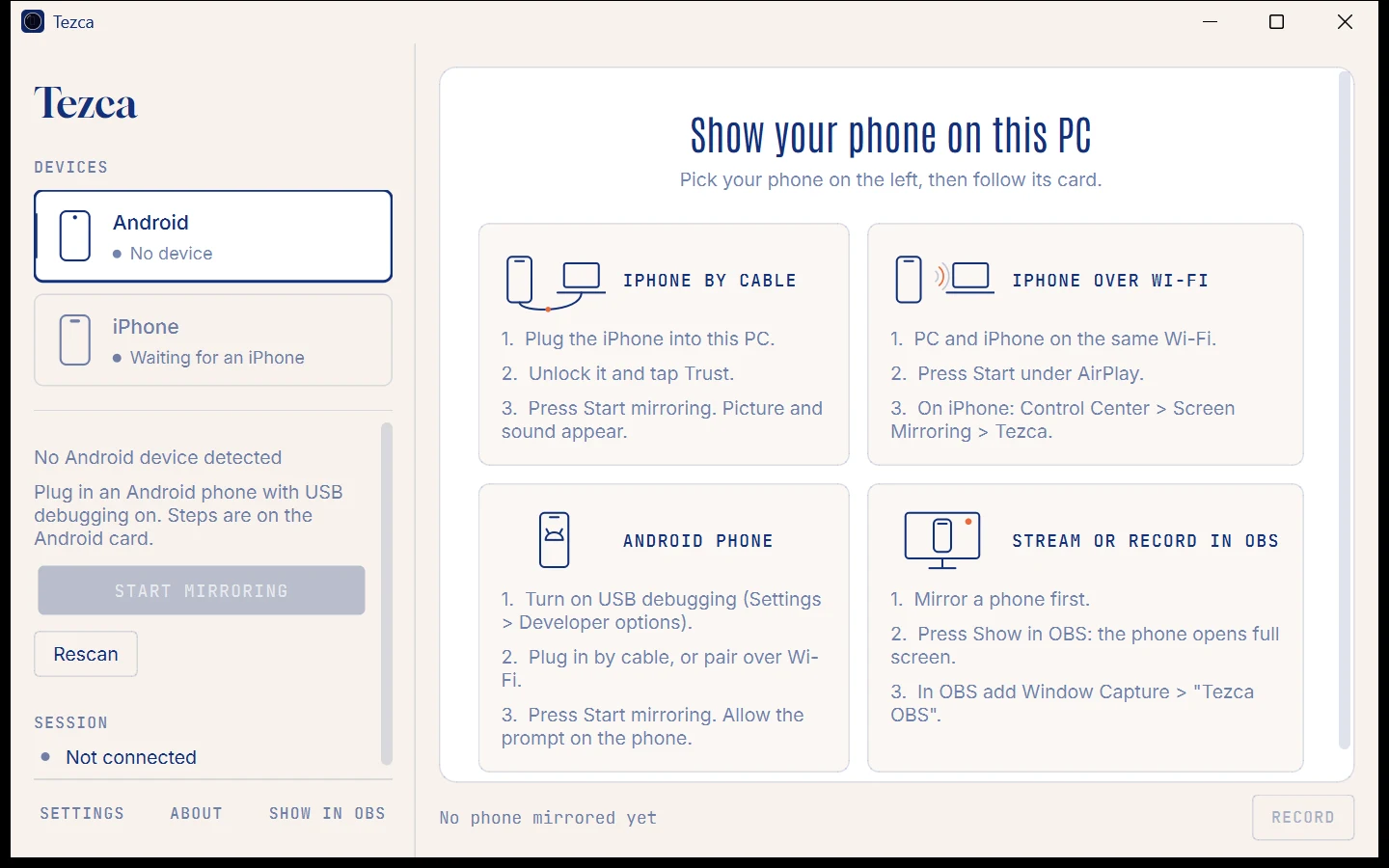
Connect an Android phone by USB with USB debugging on, and its screen appears in seconds.
#2 iPhone
Mirror an iPhone over its USB cable with video and sound, or over AirPlay on your Wi-Fi.
#3 GPU
Video decodes on the graphics card with D3D11VA, with a software fallback when it cannot.
#4 OBS Soon
A borderless window with only the phone picture, made for OBS scenes.

#5 Record Soon
Save what is on the phone screen straight to an MP4 file.

#6 Private
No account, no telemetry, no update checks. Tezca never talks to a server.

01
Run Tezca Setup. No account, nothing to download.
02
Plug in an Android phone or an iPhone, or pick Tezca under Screen Mirroring.
03
Add the Tezca window to a scene as a Window Capture source.
Offline
Tezca never contacts a server. Phones connect over the USB cable or your own Wi-Fi.
Local data
Settings and logs stay on your PC, in %APPDATA%\PhoneMirror.
No updates behind your back
There are no update checks. A new version arrives only when you download it.
Yes. Tezca is free, with no paid tier, no trial and no account.
No. Tezca works fully offline. Phones connect over the USB cable or your local Wi-Fi, and Tezca never contacts a server, not even to check for updates.
Early builds are not code-signed yet, so Windows does not recognise the publisher. Check the SHA-256 of the file against the one on the download page, then choose More info › Run anyway.
On the phone, open Settings › About phone and tap Build number seven times. Then open Settings › System › Developer options and turn on USB debugging. When you plug the phone in, tap Allow on the prompt.
For AirPlay, the iPhone and the PC must be on the same Wi-Fi, the network must be set to Private in Windows, and Windows Firewall must allow Tezca's AirPlay receiver. Guest networks often block it. Or skip Wi-Fi and use the USB cable.
Yes. Add the Tezca window to a scene as a Window Capture source. A clean capture window with only the phone picture is coming.